
How To Connect Bluetooth 2013 Nissan Altima
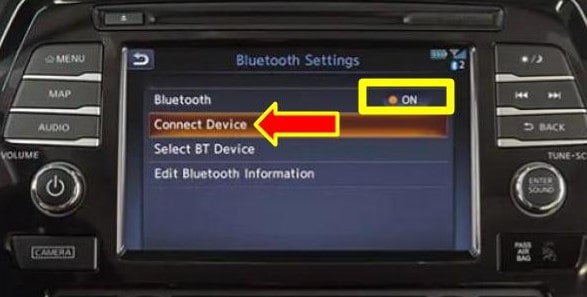
The 2013 Nissan Altima, a stalwart of the mid-size sedan segment, offers a reliable and comfortable driving experience. One of its convenient features is Bluetooth connectivity, allowing for hands-free calling and audio streaming. While the process is generally straightforward, understanding the intricacies ensures a smooth and frustration-free pairing. This article provides a comprehensive guide to connecting your Bluetooth device to your 2013 Nissan Altima.
Preparation: Ensuring Compatibility and Readiness
Before embarking on the pairing process, it's crucial to ensure compatibility. The 2013 Altima's Bluetooth system is generally compatible with most modern smartphones and devices supporting the Bluetooth protocol. However, older devices might present compatibility issues. Consult your device's manual or manufacturer's website to confirm Bluetooth support.
Prior to initiating the pairing process inside the Altima, make sure of the following:
- Bluetooth is Enabled: Ensure that Bluetooth is activated on your smartphone or device. Typically, this can be found in the settings menu under "Bluetooth" or "Connections."
- Device is Discoverable: Set your device to "discoverable" or "visible" mode. This allows the Altima's Bluetooth system to locate and identify your device. The duration for which your device remains discoverable varies; refer to your device's manual for instructions.
- Vehicle is in Park: For safety reasons, the pairing process is typically restricted to when the vehicle is stationary and in "Park" (P).
- Ignition is On: The vehicle's ignition must be in the "On" position (engine running or accessory mode) to access the infotainment system.
Step-by-Step Pairing Process
With the necessary preparations completed, follow these steps to connect your Bluetooth device:
- Access the Bluetooth Menu: Navigate to the Bluetooth settings within the Altima's infotainment system. This is typically accessed through the "Settings" or "Phone" menu on the touchscreen or via buttons on the center console. Consult your owner's manual for specific instructions as infotainment systems can vary slightly.
- Initiate Device Search: Within the Bluetooth menu, select the option to "Pair New Device," "Add Device," or a similar command. This will instruct the Altima's Bluetooth system to begin searching for available Bluetooth devices within range.
- Select Your Device: After a short scan, the Altima's system will display a list of available Bluetooth devices. Locate your device's name in the list and select it. The device name is often the device's model number or a custom name you've assigned.
- Confirm the Pairing Code: Both the Altima's infotainment screen and your device will display a pairing code (often a 4-6 digit number). Verify that the code displayed on both devices is identical. This step is crucial to confirm that you are connecting to the correct device and to prevent unauthorized connections.
- Authorize Connection: On your device, confirm the pairing by tapping "Pair," "Connect," or a similar prompt. You may also be prompted to grant the Altima access to your contacts and call history. Granting these permissions will enable features like hands-free calling and displaying caller ID information.
Troubleshooting Common Issues
While the pairing process is generally straightforward, occasional issues may arise. Here are some common troubleshooting tips:
- Device Not Found: If your device isn't appearing in the list of available devices, ensure it is in discoverable mode and within range of the Altima's Bluetooth system. Also, try turning Bluetooth off and then back on on your device.
- Pairing Code Mismatch: If the pairing codes don't match, restart the pairing process from the beginning. Ensure no other Bluetooth devices are attempting to connect simultaneously.
- Connection Problems: If your device pairs successfully but experiences intermittent disconnections or audio quality issues, try deleting the pairing from both the Altima and your device, and then re-pairing. Check for software updates for both your phone and the Altima's infotainment system (though updates for a 2013 model are less likely).
- Too Many Paired Devices: Most systems have a limit on the number of stored paired devices. If you've reached the limit, you may need to delete an older pairing to add a new one.
Final Notes
Successfully connecting your Bluetooth device to your 2013 Nissan Altima unlocks convenient features for hands-free communication and audio enjoyment. By following these steps and troubleshooting tips, you can ensure a seamless and reliable Bluetooth experience. Remember to always prioritize safety and avoid distractions while driving. Refer to your Nissan Altima owner's manual for the most accurate and specific instructions related to your vehicle's infotainment system.