
How To Connect Bluetooth In A Nissan Altima
The Nissan Altima, a mainstay of the mid-size sedan market, has consistently offered Bluetooth connectivity as a standard or optional feature for several years. While the pairing process itself is relatively straightforward, understanding the underlying principles and troubleshooting potential issues can elevate your driving experience. This guide delves into the technical aspects of connecting your smartphone to the Altima's Bluetooth system, covering different generations of the infotainment system and potential challenges you might encounter.
Understanding Bluetooth Profiles and Compatibility
Before diving into the pairing process, it's crucial to grasp the concept of Bluetooth profiles. These profiles are standardized communication protocols that define how different Bluetooth devices interact. Several key profiles are relevant to automotive Bluetooth implementations:
- HFP (Hands-Free Profile): This is the fundamental profile for making and receiving phone calls. It allows the car's system to access your phone's microphone and speakers.
- A2DP (Advanced Audio Distribution Profile): This profile enables streaming audio from your phone to the car's speakers, allowing you to listen to music, podcasts, or audiobooks.
- AVRCP (Audio/Video Remote Control Profile): This profile allows the car's controls (steering wheel buttons or infotainment screen) to control the playback of audio on your phone, such as skipping tracks or adjusting volume.
- PBAP (Phone Book Access Profile): This profile allows the car's system to access and display your phone's contacts.
The Altima's Bluetooth system supports all these profiles. However, compatibility can sometimes be an issue if your phone is running an older version of Bluetooth or has a malfunctioning Bluetooth chip. Always ensure your phone's operating system is up-to-date for optimal performance.
The Pairing Process: A Step-by-Step Guide
The exact pairing procedure may vary slightly depending on the year and trim level of your Altima. However, the general steps remain consistent:
Step 1: Accessing the Bluetooth Menu
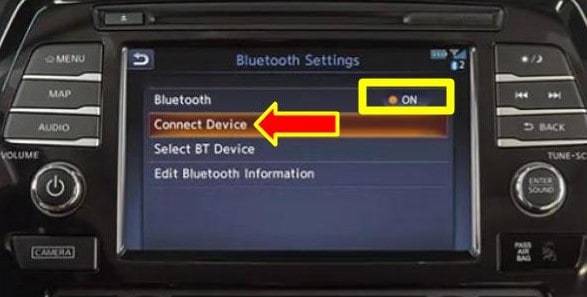
The first step involves navigating to the Bluetooth settings on your Altima's infotainment system. On newer models with a touchscreen, this usually involves pressing the "Settings" or "Phone" button on the main menu. On older models with a physical button interface, you might need to use the navigation buttons to scroll through the menu options until you find the Bluetooth settings.
Look for options like "Bluetooth," "Phone," "Pair Device," or "Add Device." The exact terminology can differ between model years. Once you locate the appropriate option, select it.
Step 2: Enabling Bluetooth on Your Phone
On your smartphone (Android or iOS), go to the "Settings" menu. Find the "Bluetooth" option and ensure it is turned ON. Your phone will begin scanning for nearby Bluetooth devices.
Step 3: Initiating the Pairing Process from the Altima
In the Altima's Bluetooth menu, select the option to "Pair Device" or "Add Device." The system will typically display a message indicating that it is searching for Bluetooth devices.
Step 4: Selecting Your Phone from the Altima's List
After a few moments, your phone should appear on the Altima's infotainment screen. Select your phone from the list. Be patient; it might take a little time for the Altima to discover your device.
Step 5: Confirming the Pairing Code
Both your phone and the Altima's screen will display a pairing code. This code is a security measure to ensure you are connecting to the correct device. Verify that the code on your phone matches the code on the Altima's screen. If they match, confirm the pairing request on both devices.
Step 6: Granting Permissions (If Required)
After confirming the pairing code, your phone might ask you to grant the Altima's system access to your contacts, call history, and other information. These permissions are necessary for features like phone book integration and call display. Choose "Allow" or "Grant Access" to enable these features. If you deny access, the pairing will still complete for audio streaming and hands-free calling, but some features will be limited.
Step 7: Automatic Connection
Once the pairing process is complete, the Altima should automatically connect to your phone whenever you enter the car, as long as Bluetooth is enabled on your phone. You can typically manage paired devices in the Bluetooth settings menu on the Altima's infotainment system, allowing you to delete or rename them.
Troubleshooting Common Bluetooth Issues
Despite the seemingly simple process, Bluetooth connectivity can sometimes be problematic. Here are some common issues and potential solutions:
- Pairing Fails: Ensure Bluetooth is enabled on both your phone and the Altima. Verify that the pairing code matches on both devices. Try restarting both your phone and the car's infotainment system. Sometimes, a simple reboot can resolve temporary glitches. Also, check if the Altima's Bluetooth memory is full. Most systems have a limit on the number of paired devices.
- Connection Drops Intermittently: This could be due to interference from other electronic devices. Try moving away from sources of potential interference, such as Wi-Fi routers or microwave ovens. Low battery on your phone can also cause Bluetooth connection issues. Make sure your phone is sufficiently charged. Furthermore, check for software updates on both your phone and the Altima's infotainment system. Manufacturers often release updates that improve Bluetooth performance.
- Audio Quality is Poor: Ensure your phone's volume is turned up. Check the audio settings on the Altima's infotainment system to ensure the Bluetooth audio source is selected. A weak Bluetooth signal can also cause audio distortion. Try moving your phone closer to the infotainment unit.
- Contacts Don't Sync: Verify that you have granted the Altima's system access to your contacts on your phone. Check the phone book access settings on both your phone and the Altima's infotainment system. Sometimes, deleting and re-pairing the device can resolve synchronization issues.
- "Device Not Supported" Error: This usually indicates an incompatibility between your phone and the Altima's Bluetooth system. Check the Altima's owner's manual or Nissan's website for a list of compatible devices. While not officially supported, sometimes updating your phone's OS resolves the issue.
Advanced Troubleshooting and Hidden Settings
In some instances, more advanced troubleshooting steps might be necessary. Some Altimas have a hidden diagnostic menu that can be accessed by pressing a specific sequence of buttons on the infotainment system. Accessing this menu often involves holding down certain physical buttons simultaneously while the car is in accessory mode (engine off, but ignition on). Consult your owner's manual or search online forums for the specific button combination for your Altima model year.
Within the diagnostic menu, you might find options to reset the Bluetooth module, update the Bluetooth firmware (if available), or view detailed information about the Bluetooth connection. Be cautious when using the diagnostic menu, as incorrect settings can potentially damage the infotainment system.
Another potential solution is to try a "factory reset" of the infotainment system. This will erase all stored settings, including paired Bluetooth devices, and restore the system to its default configuration. The factory reset option is typically found in the "Settings" menu, often under a "System" or "Reset" submenu.
The Future of Automotive Bluetooth
While Bluetooth remains a ubiquitous technology in automotive applications, it is gradually being supplemented and potentially superseded by newer technologies like Apple CarPlay and Android Auto. These systems offer tighter integration with smartphones, providing a more seamless and feature-rich experience. However, Bluetooth will likely remain a crucial fallback option for devices that don't support these newer technologies, ensuring that virtually any smartphone can connect to the Altima's infotainment system for basic hands-free calling and audio streaming. The technology is also constantly evolving, with newer versions of Bluetooth offering improved range, bandwidth, and security.