
Nissan Apple Carplay Not Working
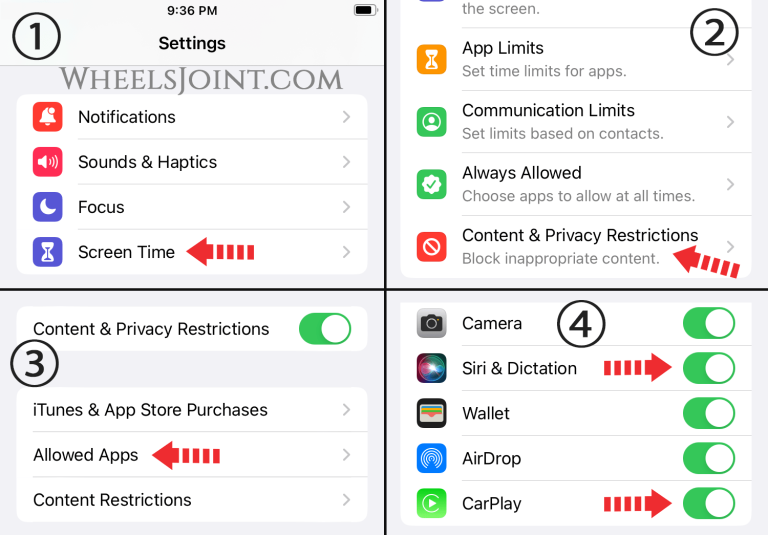
Apple CarPlay has become a ubiquitous feature in modern vehicles, offering seamless integration of your iPhone with your car's infotainment system. However, encountering issues with CarPlay is a common frustration for many Nissan owners. This article delves into the various reasons why your Nissan's CarPlay might not be functioning correctly, providing a comprehensive troubleshooting guide and potential solutions.
Understanding the Common Culprits
Before diving into complex diagnostics, it's crucial to address the most frequent causes of CarPlay malfunction in Nissan vehicles. These often revolve around connectivity, software glitches, or simple user errors.
Cable Issues
A faulty or incompatible Lightning cable is arguably the most common culprit. CarPlay relies on a stable data connection, and a damaged or low-quality cable can interrupt this communication. Generic, non-certified cables are particularly prone to causing problems. Consider these factors:
- Inspect the Cable: Look for any visible signs of damage, such as frayed wires, bent connectors, or tears in the cable jacket.
- Try a Different Cable: A certified Apple Lightning cable is always recommended. Borrow one from a friend or purchase a new one specifically designed for data transfer.
- Check the Cable's Compatibility: Ensure the cable is designed for both charging and data transfer. Some cheaper cables are only designed for charging.
Software Glitches and Updates
Software bugs on either your iPhone or the Nissan's infotainment system can disrupt CarPlay functionality. Keeping both systems updated is essential for optimal performance.
- iPhone iOS Update: Ensure your iPhone is running the latest version of iOS. Go to Settings > General > Software Update to check for available updates.
- Nissan Infotainment System Update: Check your Nissan's owner's manual or contact your local Nissan dealership to inquire about available infotainment system updates. These updates often include bug fixes and improved CarPlay compatibility. This process might involve downloading the update to a USB drive and then installing it via the infotainment system's settings menu.
CarPlay Settings
Incorrect CarPlay settings on your iPhone or Nissan's infotainment system can prevent the feature from working properly.
- CarPlay Enabled on iPhone: Go to Settings > General > CarPlay and ensure that CarPlay is enabled. Your Nissan should also be listed as an available car.
- CarPlay Enabled on Nissan: Navigate to the settings menu on your Nissan's infotainment system and verify that CarPlay is enabled. The exact location of this setting may vary depending on the model and year.
Advanced Troubleshooting Techniques
If the basic solutions don't resolve the issue, it's time to delve into more advanced troubleshooting steps.
Force Restart iPhone and Nissan Infotainment System
A simple force restart can often resolve temporary software glitches. The procedure for force restarting an iPhone varies depending on the model (e.g., iPhone 8 and later, iPhone 7, iPhone 6s and earlier). Consult Apple's support documentation for specific instructions.
To restart the Nissan infotainment system, consult your owner's manual. In some models, holding down the power button for an extended period (e.g., 10-15 seconds) will initiate a reboot. In others, you may need to access a specific menu option within the settings.
Forget the Car and Re-Pair
Deleting the existing CarPlay connection on both your iPhone and the Nissan's infotainment system and then re-pairing them can establish a fresh connection and resolve conflicts. This is akin to a "clean slate" approach.
- iPhone: Go to Settings > General > CarPlay, select your Nissan, and tap "Forget This Car."
- Nissan: Access the Bluetooth or CarPlay settings in your infotainment system and remove your iPhone from the list of paired devices.
- Re-Pair: Follow the on-screen instructions on both your iPhone and the Nissan's infotainment system to re-establish the CarPlay connection.
Check for Interference
Wireless interference from other devices can sometimes disrupt the CarPlay connection, particularly if you're using a wireless CarPlay adapter. Common sources of interference include Bluetooth devices, Wi-Fi routers, and even certain types of electrical equipment. Try disabling Bluetooth on other nearby devices and moving away from potential sources of interference to see if it resolves the issue.
USB Port Inspection
Examine the USB port in your Nissan for any signs of damage or debris. A bent pin or accumulated dust can prevent a proper connection. Use a can of compressed air to gently clean the port. If the port appears damaged, it may require professional repair or replacement.
Consult Nissan Technical Service Bulletins (TSBs)
Nissan may have released Technical Service Bulletins (TSBs) addressing known CarPlay issues with specific models or infotainment systems. TSBs are official documents issued by manufacturers to inform technicians about common problems and their recommended solutions. Contact your local Nissan dealership or search online databases of TSBs to see if there are any relevant bulletins for your vehicle.
Diagnosing Hardware Issues
If software troubleshooting proves unsuccessful, the problem might stem from a hardware malfunction within the Nissan's infotainment system. This requires a more in-depth diagnostic approach, often involving specialized tools and expertise.
Infotainment System Diagnostic Scan
A professional mechanic can use a diagnostic scan tool to check for error codes related to the infotainment system. These codes can provide valuable clues about the nature of the problem and the specific component that is failing. For example, codes related to the USB port controller or the head unit itself could indicate hardware failure.
Head Unit Inspection
In rare cases, the head unit itself might be faulty. This is a more complex issue that typically requires removing the head unit from the dashboard and inspecting its internal components. A qualified technician can perform this inspection and determine if the head unit needs to be repaired or replaced. This often involves specialized knowledge of automotive electronics.
Real-World Examples and Use Cases
Consider these real-world scenarios that illustrate common CarPlay issues in Nissan vehicles:
"My Nissan Rogue's CarPlay would randomly disconnect after a few minutes of use. After trying different cables, I discovered that the USB port was slightly loose. The dealer replaced the USB port assembly, and the problem was resolved." - John S., Nissan Rogue Owner
"My 2018 Nissan Altima's CarPlay stopped working after an iOS update. I tried everything, but nothing worked. Eventually, I found a Nissan TSB that recommended updating the infotainment system software. After the update, CarPlay worked perfectly." - Maria L., Nissan Altima Owner
Preventative Measures
Taking proactive steps can help prevent CarPlay issues from occurring in the first place:
- Use Certified Accessories: Always use certified Apple Lightning cables and chargers.
- Keep Software Updated: Regularly update both your iPhone's iOS and your Nissan's infotainment system software.
- Protect the USB Port: Avoid exposing the USB port to excessive dust or moisture.
- Handle Cables with Care: Avoid bending or twisting the Lightning cable excessively.
When to Seek Professional Help
If you've exhausted all the troubleshooting steps outlined above and CarPlay is still not working, it's time to seek professional assistance from a qualified mechanic or Nissan dealership. They have the expertise and specialized tools to diagnose and repair complex hardware or software issues. Do not attempt to disassemble or repair the infotainment system yourself unless you have extensive experience with automotive electronics.
In conclusion, addressing a non-functional CarPlay system in your Nissan requires a systematic approach. By carefully examining potential causes, following troubleshooting steps, and knowing when to seek professional help, you can restore seamless iPhone integration and enjoy the benefits of CarPlay.