
2017 Nissan Titan Check Engine Light Reset
So, you've got a Check Engine Light (CEL) illuminating your 2017 Nissan Titan's dash. It's a common problem, and thankfully, often one you can tackle yourself. This article will guide you through the process of resetting the CEL on your Titan, but more importantly, help you understand why it's on in the first place and the precautions you should take.
Understanding the Check Engine Light
First and foremost, the CEL isn't just there to annoy you. It's your Titan's way of telling you that its onboard diagnostic (OBD) system has detected an issue. This system constantly monitors various sensors and components to ensure your truck is running efficiently and within acceptable emission limits. When something deviates from the norm, a Diagnostic Trouble Code (DTC) is stored in the truck's computer, and the CEL is illuminated.
Ignoring a CEL can lead to more serious problems down the road. It could be something minor, like a loose gas cap (believe it or not, this is a frequent culprit!), or something significant, like a faulty catalytic converter. Continuing to drive with an unaddressed issue can potentially damage other components and lead to costly repairs.
Common Causes of a 2017 Titan CEL
While a proper diagnosis requires reading the DTCs, here are some common issues that frequently trigger the CEL on 2017 Titans:
- Loose or Damaged Gas Cap: As mentioned earlier, this is surprisingly common. A loose cap allows fuel vapors to escape, triggering an EVAP (Evaporative Emission Control System) code.
- Faulty Oxygen (O2) Sensors: These sensors monitor the oxygen content in the exhaust stream, providing feedback to the engine control unit (ECU) to optimize fuel mixture. Faulty sensors can lead to poor fuel economy and emissions.
- Catalytic Converter Issues: The catalytic converter reduces harmful emissions. If it's not functioning correctly (due to age, damage, or contamination), it will trigger a CEL.
- Mass Airflow (MAF) Sensor Problems: The MAF sensor measures the amount of air entering the engine. A dirty or faulty MAF sensor can cause inaccurate readings, leading to poor engine performance and a CEL.
- Spark Plug or Ignition Coil Issues: Misfires caused by worn spark plugs or failing ignition coils can also trigger the CEL.
- EVAP System Leaks: Leaks in the EVAP system hoses or components can cause pressure imbalances, triggering a CEL.
Reading the Diagnostic Trouble Code (DTC)
Before you even think about resetting the CEL, you must read the DTC(s). Resetting the light without knowing the underlying cause is like putting a bandage on a wound without cleaning it – it might look better temporarily, but the problem will likely return, and potentially worsen.
Here's how to read the DTCs:
- Obtain an OBDII Scanner: You'll need an OBDII (On-Board Diagnostics II) scanner. These are readily available online or at most auto parts stores. You can buy one for personal use, or many auto parts stores will loan you one for free (or a small deposit). Some scanners are simple code readers, while others offer advanced features like live data monitoring.
- Locate the OBDII Port: The OBDII port is typically located under the dashboard on the driver's side. It's a trapezoidal connector, usually black or gray.
- Connect the Scanner: Plug the scanner into the OBDII port.
- Turn the Ignition On (Engine Off): Turn the ignition key to the "ON" position, but do not start the engine. This allows the scanner to communicate with the truck's computer.
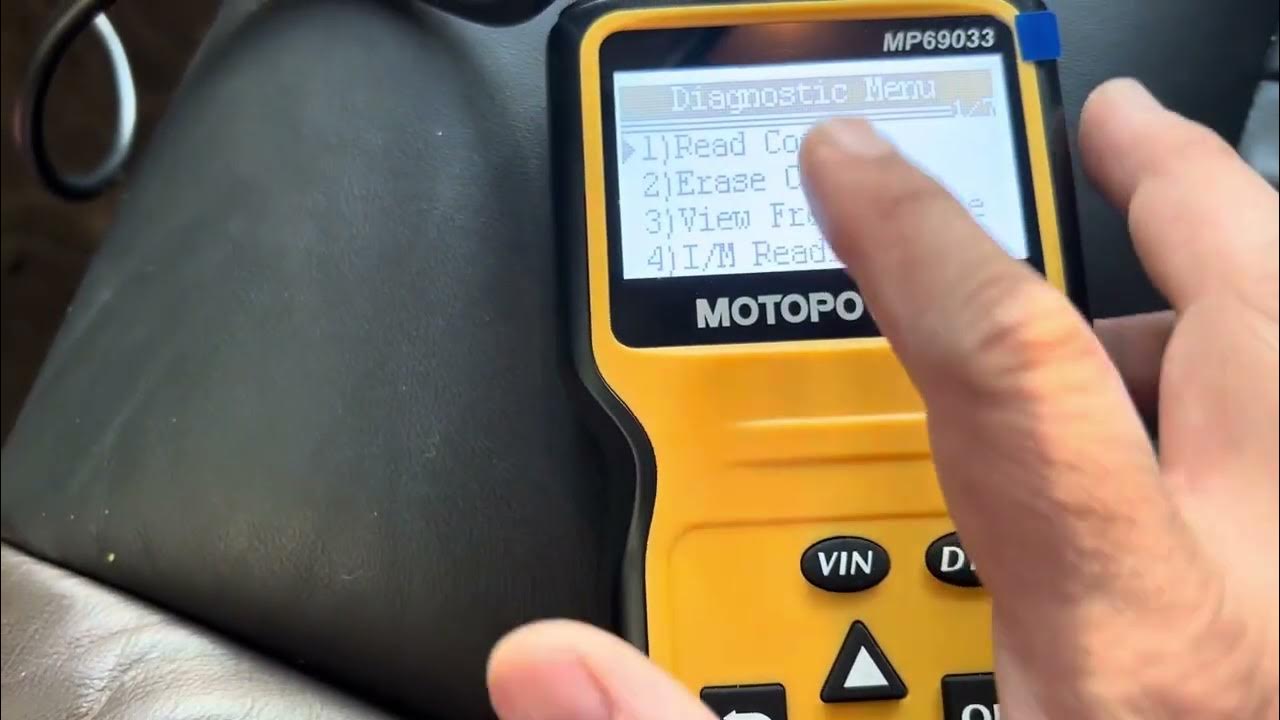
- Follow the Scanner's Instructions: Each scanner has its own menu system, but you'll typically need to select an option like "Read Codes," "Diagnostic Codes," or similar. The scanner will then display any stored DTCs.
- Record the Codes: Write down each DTC displayed by the scanner. These codes are usually in the format of "Pxxxx" (e.g., P0300 for random misfire).
- Research the Codes: Use a reliable online resource (like a dedicated automotive forum or a reputable website like OBD-Codes.com) to research the meaning of each DTC. This will give you a better understanding of the potential problem.
Example: Let's say the scanner shows a code of "P0420 - Catalyst System Efficiency Below Threshold (Bank 1)". This indicates a problem with the catalytic converter on bank 1 (the side of the engine with cylinder #1).
Resetting the Check Engine Light on a 2017 Nissan Titan
Okay, now that you've read the DTC(s) and have a better understanding of the issue, let's discuss resetting the CEL. Remember, you should only reset the CEL after addressing the underlying problem.
There are several ways to reset the CEL:
- Using an OBDII Scanner: This is the most common and recommended method.
- Connect the scanner to the OBDII port.
- Turn the ignition on (engine off).
- Follow the scanner's instructions to select the "Erase Codes," "Clear Codes," or similar option.
- The scanner will usually ask you to confirm the action. Select "Yes" or "OK."
- The scanner will then clear the DTCs and turn off the CEL.
- Disconnect the scanner.
- Disconnecting the Battery: This is a less precise method and can potentially erase other stored settings (like radio presets). Use this method as a last resort.
- Ensure the engine is off.
- Locate the negative (-) terminal of the battery.
- Use a wrench to loosen the nut on the negative terminal clamp.
- Carefully disconnect the negative terminal cable from the battery post.
- Wait for at least 15 minutes. This allows the vehicle's computer to completely reset. Some sources recommend waiting up to 30 minutes.
- Reconnect the negative terminal cable to the battery post.
- Tighten the nut on the negative terminal clamp.
Important Note: Disconnecting the battery can also reset your radio presets and potentially require you to re-enter your radio security code (if applicable). Consult your owner's manual for instructions on re-entering the radio code.
After Resetting the CEL
After resetting the CEL, it's crucial to monitor the vehicle's performance and be aware that the light may return.
- Drive the Vehicle: Drive your Titan under various conditions (city, highway) to allow the onboard diagnostic system to re-evaluate the sensors and systems.
- Monitor for the CEL to Return: If the underlying problem persists, the CEL will likely reappear after a certain number of drive cycles.
- Re-Scan if Necessary: If the CEL returns, use the OBDII scanner to read the DTCs again. This will confirm that the original problem is still present or if a new issue has arisen.
When to Seek Professional Help
While many CEL issues can be resolved with basic troubleshooting, there are times when it's best to consult a qualified mechanic:
- You are uncomfortable working on your vehicle.
- You are unable to diagnose the problem based on the DTC(s).
- The CEL returns repeatedly after you've attempted to fix the problem.
- The vehicle is experiencing significant performance issues (e.g., severe misfires, stalling, loss of power).
- The DTC indicates a complex or potentially dangerous problem.
Remember, your safety and the long-term health of your 2017 Nissan Titan are paramount. Don't hesitate to seek professional assistance when needed. A qualified mechanic has the tools, expertise, and experience to accurately diagnose and repair complex automotive problems.
By understanding the CEL, reading the DTCs, and following these steps, you can confidently address many common issues and keep your 2017 Nissan Titan running smoothly.
Disclaimer: This article is for informational purposes only and should not be considered a substitute for professional automotive advice. Always consult your owner's manual and follow safety precautions when working on your vehicle. The author is not responsible for any damage or injury that may occur as a result of following the information in this article.