
Como Conectar Mi Celular A Mi Carro Nissan
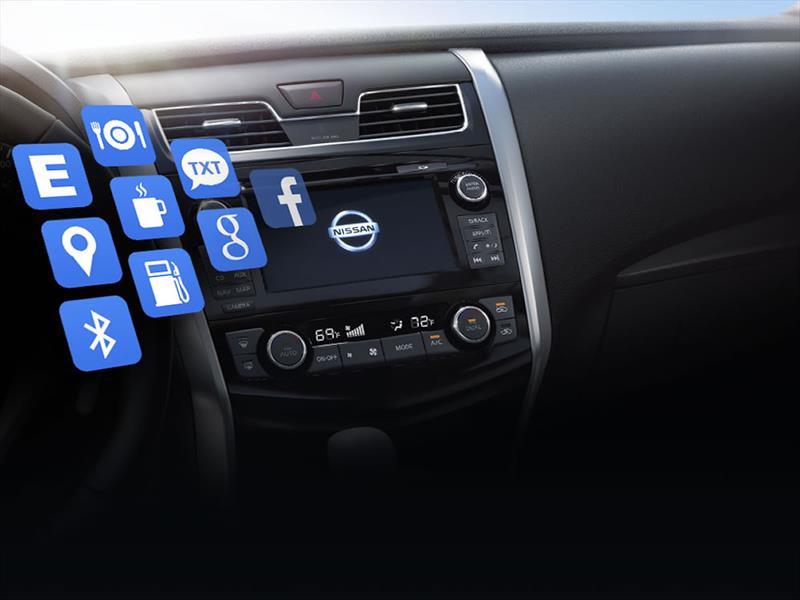
Connecting your smartphone to your Nissan vehicle unlocks a world of convenience and integration, allowing you to access music, navigation, and communication features directly through your car's infotainment system. However, the precise method for establishing this connection varies depending on the specific Nissan model and the features it offers. This guide provides a comprehensive overview of the different connection methods, troubleshooting tips, and a deep dive into the underlying technologies at play, specifically catering to those interested in the "how" and "why" behind the process.
Bluetooth Connectivity: The Foundation
The most fundamental method for connecting your phone is via Bluetooth. This wireless technology utilizes short-range radio waves to establish a connection between your phone and your car's head unit. Think of it as a sophisticated walkie-talkie, but with the ability to transmit digital audio and control signals.
Pairing Your Phone via Bluetooth: The Standard Procedure
While the exact menu navigation might differ slightly based on your Nissan model year and trim, the general process remains consistent:
- Enable Bluetooth on your smartphone: This is typically found within your phone's settings menu. Ensure your phone is discoverable.
- Access the Bluetooth settings on your Nissan's infotainment system: Navigate through the menus on your car's touchscreen or using the physical buttons to find the Bluetooth options. Look for labels such as "Bluetooth," "Phone," or "Pairing."
- Initiate the pairing process: Select "Add Device," "Pair New Device," or a similar option on your car's screen. Your Nissan will then begin searching for available Bluetooth devices.
- Select your phone from the list: Once your phone appears on the Nissan's screen, select it.
- Confirm the pairing code: Both your phone and the Nissan's screen will display a pairing code. Verify that the codes match on both devices. This code ensures you're connecting to the correct device and prevents unauthorized access.
- Grant permissions: Your phone may ask for permissions to access your contacts, call history, and media. Granting these permissions enables features like hands-free calling and music streaming.
After successful pairing, your phone should automatically connect to your Nissan each time you enter the vehicle with Bluetooth enabled on your phone. This automatic connection relies on a pre-existing "trusted connection" stored in both devices' memory.
Troubleshooting Bluetooth Connection Issues: Common culprits include Bluetooth being disabled on either device, interference from other electronic devices, or outdated software on your phone or the car's infotainment system. Try restarting both devices, ensuring they are within range (typically within 30 feet), and checking for software updates.
Behind the Scenes: Bluetooth Profiles
Bluetooth doesn't just connect devices; it uses profiles to define specific functionalities. The most relevant profiles for car integration are:
- HFP (Hands-Free Profile): Enables hands-free calling, allowing you to make and receive calls through your car's speakers and microphone.
- A2DP (Advanced Audio Distribution Profile): Allows you to stream audio from your phone to your car's speakers, enabling music playback and podcast streaming.
- AVRCP (Audio/Video Remote Control Profile): Enables you to control music playback (play, pause, skip tracks) from your car's infotainment system.
- PBAP (Phone Book Access Profile): Allows the car to access your phone's contacts, enabling caller ID and voice dialing.
The compatibility and performance of these profiles determine the overall functionality you experience via Bluetooth.
USB Connectivity: A Wired Alternative and Charging Solution
Connecting your phone via USB offers a more stable and reliable connection compared to Bluetooth, especially in areas with strong radio frequency interference. Furthermore, USB provides the added benefit of charging your phone while connected.
Utilizing USB for Charging and Media Playback
The process is straightforward:
- Connect your phone to the USB port in your Nissan using a compatible USB cable.
- On your car's infotainment system, select the "USB" or "iPod" source.
- Your phone should appear as a media device, allowing you to browse and play music files stored on your phone.
Important Considerations: The USB port in your car may not provide fast charging capabilities. The charging speed depends on the amperage output of the port. Also, some older Nissan models might only support USB connections for media playback and not for advanced features like Apple CarPlay or Android Auto.
USB and Data Transfer: Understanding the Protocols
USB connectivity relies on various data transfer protocols, the most common being Media Transfer Protocol (MTP). MTP allows your phone to be recognized as a media device, enabling the car to access and play audio files. Some Nissan models might also support Picture Transfer Protocol (PTP) for viewing photos.
Apple CarPlay and Android Auto: The Seamless Integration Experience
Apple CarPlay and Android Auto are software platforms developed by Apple and Google, respectively, that mirror your phone's interface onto your car's infotainment screen. They provide a user-friendly and integrated experience for accessing navigation, music, communication, and other apps designed for in-car use.
Connecting via CarPlay
- Ensure CarPlay is enabled on your Nissan: Check your car's settings menu to confirm that CarPlay is activated.
- Connect your iPhone to the USB port: Use a Lightning cable to connect your iPhone to the designated CarPlay USB port in your Nissan.
- Follow the prompts on your iPhone and the car's screen: Your iPhone will ask you to trust the connection, and your Nissan will display the CarPlay interface.
Wireless CarPlay: Some newer Nissan models support wireless CarPlay, eliminating the need for a USB cable. In this case, you'll need to pair your iPhone with the car's Bluetooth first, and then follow the on-screen instructions to activate wireless CarPlay.
Connecting via Android Auto
- Download the Android Auto app on your phone: Ensure you have the latest version of the Android Auto app installed.
- Connect your Android phone to the USB port: Use a USB cable to connect your Android phone to the designated Android Auto USB port in your Nissan.
- Follow the prompts on your phone and the car's screen: Your phone will guide you through the setup process, which involves granting permissions and configuring settings.
Wireless Android Auto: Similar to CarPlay, some newer Nissan models support wireless Android Auto. The setup process involves initial Bluetooth pairing followed by activation of wireless Android Auto through the infotainment system.
Delving Deeper: How CarPlay and Android Auto Work
CarPlay and Android Auto don't simply mirror your phone's screen. They act as a bridge, allowing your car's infotainment system to run apps processed on your phone. The car's head unit essentially becomes a display and input device for your phone's computing power. This approach ensures that apps are always up-to-date and that the car's infotainment system doesn't become obsolete due to outdated software.
Data Transmission: Both platforms use a combination of USB (for wired connections) and Wi-Fi (for wireless connections) to transmit data between your phone and the car. USB handles the initial connection and power delivery, while Wi-Fi is used for higher-bandwidth data transfer in wireless mode.
Troubleshooting CarPlay and Android Auto Issues
Common issues include connection problems, app crashes, and compatibility issues. Here are some troubleshooting steps:
- Check your USB cable: Use a high-quality USB cable that is known to support data transfer. A damaged or low-quality cable can cause connection problems.
- Update your phone's software: Ensure your phone is running the latest version of iOS or Android.
- Update your car's infotainment system software: Check with your Nissan dealer or consult your owner's manual for instructions on how to update your car's software.
- Restart your phone and your car's infotainment system: A simple restart can often resolve minor software glitches.
- Check app permissions: Ensure that CarPlay or Android Auto has the necessary permissions to access your phone's features, such as location, contacts, and microphone.
- Factory reset the infotainment system (as a last resort): Be aware that this will erase all saved settings and preferences. Consult your owner's manual for instructions on how to perform a factory reset.
NissanConnect Services: The Connected Car Ecosystem
NissanConnect Services is a suite of connected car features that enhance the driving experience through remote access, vehicle monitoring, and emergency assistance. These services typically require a subscription and utilize a built-in cellular connection within the vehicle.
Key Features of NissanConnect Services
- Remote Engine Start/Stop: Start or stop your engine remotely using your smartphone.
- Remote Door Lock/Unlock: Lock or unlock your doors remotely.
- Vehicle Finder: Locate your vehicle using GPS tracking.
- Automatic Collision Notification: Automatically notify emergency services in the event of a collision.
- Emergency Call: Contact emergency services with the push of a button.
- Maintenance Alerts: Receive notifications about upcoming maintenance needs.
- Customizable Alerts: Set up alerts for speed, curfew, and geo-fencing.
How NissanConnect Works: The Telematics Unit
At the heart of NissanConnect Services is a telematics unit embedded within the vehicle. This unit contains a cellular modem, GPS receiver, and other sensors that collect data about the vehicle's performance and location. This data is transmitted to Nissan's servers, where it is processed and made available to you through the NissanConnect Services app.
Data Security: Nissan employs encryption and other security measures to protect your data from unauthorized access. However, it's crucial to understand the data collection and usage policies associated with NissanConnect Services.
By understanding the various methods available, from basic Bluetooth pairing to advanced platforms like CarPlay and Android Auto and the connected services of NissanConnect, you can effectively integrate your smartphone with your Nissan vehicle and enjoy a more convenient and connected driving experience.