
Uconnect Paired Audio Sources Not Working
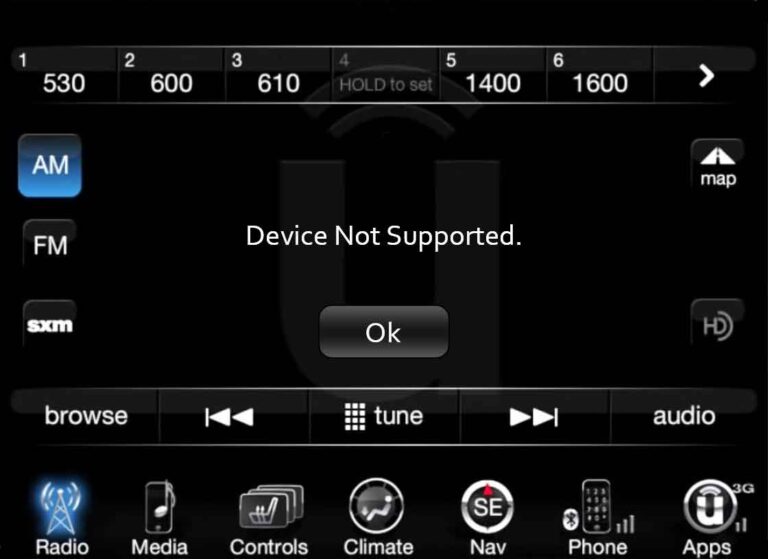
Alright, so your Uconnect system isn't playing nice with your paired audio source. You've got your phone connected via Bluetooth or USB, but silence. Or maybe it's crackling, cutting out, or just generally acting up. This is a frustratingly common problem, and thankfully, one you can often diagnose and fix yourself with a bit of technical know-how.
Understanding the Uconnect Audio Ecosystem
Before we dive into troubleshooting, let's get on the same page about how Uconnect handles audio. Uconnect, in its essence, is a complex infotainment system. Think of it as a mini-computer built into your car. It manages everything from your climate control to your navigation, and crucially, your audio entertainment. Here's a breakdown of the key components involved in getting sound from your paired device to your ears:
- Head Unit: This is the "brain" of the Uconnect system. It's the screen and the associated electronics in your dash. It's responsible for processing audio signals, managing connections, and controlling the amplifier.
- Amplifier (Amp): The amplifier takes the weak audio signal from the head unit and boosts it, making it powerful enough to drive the speakers. Some vehicles have a separate, dedicated amplifier, while others have the amplifier built into the head unit itself. Knowing which you have is important later when diagnosing potential amp-related issues.
- Speakers: The final stage in the audio chain. They convert the electrical signal into sound waves you can hear.
- Bluetooth Module: This handles the wireless connection with your phone or other Bluetooth-enabled device. It's responsible for receiving the audio stream and passing it to the head unit.
- USB Port: Provides a wired connection for audio playback. It also allows for device charging and data transfer. The USB port relies on the Media Transfer Protocol (MTP) or similar protocols to communicate with your device.
- Wiring and Connections: All these components are interconnected by wiring harnesses. Loose connections, corroded terminals, or damaged wires can disrupt the audio signal.
When you pair your phone with Uconnect, you're essentially telling the head unit: "Hey, I want to use this device as an audio source." The head unit then uses either the Bluetooth module or the USB connection to receive the audio data. It processes this data, passes it to the amplifier, and finally, the amplified signal reaches the speakers.
Troubleshooting Steps: A Systematic Approach
Now that we understand the basics, let's get down to troubleshooting. Remember to work through these steps systematically, starting with the simplest solutions first. This will save you time and prevent you from unnecessarily tearing apart your dashboard.
1. Basic Checks: The "Low-Hanging Fruit"
- Volume Control: Sounds obvious, but make sure the volume is turned up on both your Uconnect system and your paired device. Sometimes the volume can be muted on the device itself, overriding the Uconnect settings.
- Source Selection: Double-check that you've selected the correct audio source on the Uconnect screen. It should be set to Bluetooth Audio or USB, depending on how your device is connected.
- Device Compatibility: While Uconnect is generally compatible with a wide range of devices, it's worth verifying that your specific device and operating system version are officially supported. Check the Uconnect website or your vehicle's owner's manual.
- Bluetooth Profile: Ensure that the Bluetooth profile on your phone is correctly configured for audio playback (A2DP - Advanced Audio Distribution Profile). Occasionally, updates or changes to your phone's Bluetooth settings can cause issues.
- USB Cable Quality: If you're using a USB connection, try a different cable. Cheap or damaged USB cables can cause data transfer problems, leading to audio dropouts or complete failure. Opt for a high-quality data cable, not just a charging cable.
2. Bluetooth Specific Issues
- Pairing Issues: The most common Bluetooth problem. Delete the existing pairing from both your Uconnect system and your phone. Then, re-pair the devices from scratch. Make sure to grant all necessary permissions (e.g., access to contacts, media) when prompted.
- Bluetooth Interference: Bluetooth operates on the 2.4 GHz frequency band, which is also used by Wi-Fi routers, microwaves, and other devices. Try moving away from potential sources of interference or disabling Bluetooth on other devices in your car.
- Bluetooth Version Compatibility: While generally backward compatible, issues can arise between different Bluetooth versions (e.g., Bluetooth 4.0 vs. Bluetooth 5.0). Check if there are any known compatibility issues between your phone's Bluetooth version and your Uconnect system.
3. USB Specific Issues
- USB Port Functionality: Test the USB port with another device (e.g., a USB drive containing music files) to ensure that the port itself is working correctly. If the port isn't providing power or recognizing other devices, it may be faulty.
- File Format Compatibility: Uconnect supports specific audio file formats (e.g., MP3, WMA, AAC). Make sure that the audio files on your USB device are in a supported format. Trying to play unsupported formats will result in silence.
- USB Device Formatting: Uconnect may have limitations on the types of file systems it supports (e.g., FAT32, exFAT, NTFS). Format your USB drive with a compatible file system. FAT32 is generally the most compatible.
- MTP Issues: If your phone is connected via USB and acting as a media device, ensure that MTP (Media Transfer Protocol) is enabled on your phone. Some phones may default to charging mode only.
4. Software Glitches and Updates
- Uconnect Software Update: Check if there's a software update available for your Uconnect system. Software updates often include bug fixes and performance improvements that can resolve audio-related issues. You can usually check for updates through the Uconnect settings menu or by visiting the Uconnect website and entering your vehicle's VIN.
- Hard Reset: A hard reset can sometimes clear up software glitches. The procedure for performing a hard reset varies depending on the Uconnect system version. Consult your owner's manual or search online for instructions specific to your vehicle. Usually, it involves holding down the power button or a specific combination of buttons for a set period. Be aware that this might reset your Uconnect settings to default.
- Factory Reset: As a last resort for software issues, you can attempt a factory reset of the Uconnect system. This will erase all your personalized settings and restore the system to its original factory state. Back up any important data before performing a factory reset. The procedure for a factory reset is usually found within the Uconnect settings menu.
5. Hardware Issues: Deep Dive
If you've exhausted all the software-related troubleshooting steps and you're still experiencing problems, it's time to consider potential hardware issues. This is where things get a bit more complex and may require some technical expertise and tools.
- Wiring and Connections: Inspect the wiring harnesses and connectors related to the audio system. Look for loose connections, corroded terminals, or damaged wires. Pay particular attention to the connectors at the back of the head unit, the amplifier (if applicable), and the speakers. Use a multimeter to check for continuity in the wiring.
- Amplifier Failure: If your vehicle has a separate amplifier, it could be the source of the problem. Listen closely to the speakers to see if you can detect any faint sounds or crackling. If not, the amplifier may have failed. You can test the amplifier using a multimeter to check for power and ground. Replacing an amplifier can be a complex task, especially if it's integrated with other vehicle systems.
- Speaker Problems: While less common, speakers can fail over time due to wear and tear or damage. Test each speaker individually by connecting it directly to a known-good audio source. If a speaker doesn't produce sound, it's likely faulty and needs to be replaced. You can use a multimeter to test the impedance of the speaker to check for an open circuit (infinite resistance).
- Head Unit Failure: In rare cases, the head unit itself may be faulty. This is the most expensive and complex repair. Consider having a professional diagnose the head unit before replacing it. Head unit replacement often requires specialized tools and knowledge to ensure proper integration with the vehicle's other systems.
6. Advanced Diagnostics and Tools
For more advanced troubleshooting, consider using the following tools:
- OBD-II Scanner: While not directly related to audio, an OBD-II scanner can reveal diagnostic trouble codes (DTCs) that might indirectly point to electrical or communication issues affecting the Uconnect system.
- Multimeter: Essential for testing voltage, continuity, and resistance in wiring and components.
- Wiring Diagrams: Having the wiring diagrams for your specific vehicle model is crucial for tracing circuits and identifying potential problem areas. You can usually find these diagrams in a repair manual or online subscription service.
When to Call a Professional
If you've tried all the troubleshooting steps above and you're still unable to resolve the issue, it's time to consult a qualified automotive technician or a Uconnect specialist. They have the expertise and specialized tools to diagnose and repair complex audio system problems.
Specifically, seek professional help if:
- You're not comfortable working with electrical wiring.
- You suspect a hardware failure (e.g., amplifier, head unit).
- You need specialized diagnostic equipment.
- The problem is intermittent or difficult to reproduce.
Remember, working on your car's electrical system can be dangerous if you're not careful. Always disconnect the battery before performing any electrical work, and follow proper safety precautions.
By following these troubleshooting steps, you should be able to diagnose and resolve many common Uconnect audio problems. Good luck, and happy listening!